
Appearance
Linked level templates
A Level Template places another BlockoutAsset inside your level. Use it for reusable rooms, columns, stairs or other modules. Instances share a source definition while keeping their own placement and exposed variable values.
Place a template
- Choose Level Template, or press T.
- Assign the source in the contextual toolbar's Blockout Asset field.
- Move the pointer in Top View or Scene to preview the module, then click to place it.
Placement keeps the source's X/Z origin. Its base aligns to Current Y in Top View, or to the pointed-at surface in Scene, falling back to Current Y when there is no surface. The dotted preview includes the source's cuts; the source does not need a previously saved mesh.
| Control during placement | Action |
|---|---|
| Wheel | Rotate by the configured rotation step, initially 15°. |
| Ctrl/Cmd + Wheel | Rotate in one-degree steps. |
| Shift + Wheel | Change placement height. In Scene, this holds the preview on the chosen height plane when you point at another surface. |
| Esc | Cancel placement. |
After placement, move, rotate, scale, group, duplicate or copy the template like another block. It also supports Array and Mirror modifiers. Its Top View fill follows the module's real section, including holes and disconnected parts. Click the filled contents to select it; an empty template can still be selected through its name or Hierarchy row.
Edit the shared source
Select one unlocked template and use any of these actions:
- Click Edit Template in Context beside Source in the inspector.
- Click › beside its Hierarchy name, or double-click its Hierarchy row.
- Press Enter or ,.
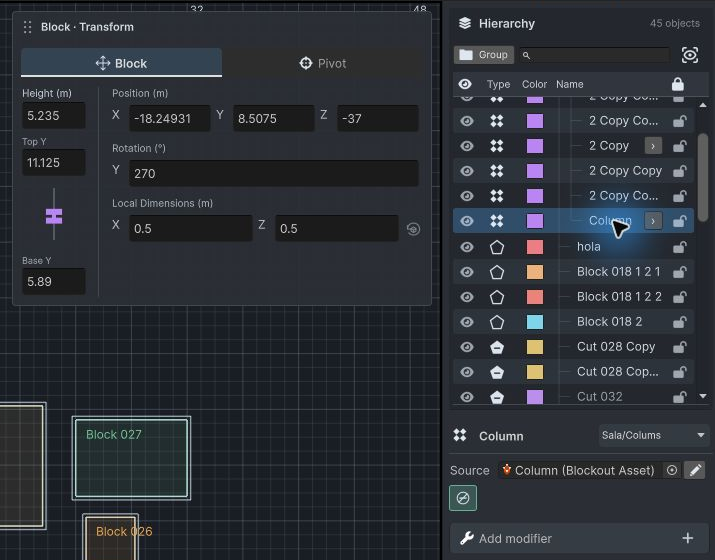
Hierarchy, drawing tools and Variables now edit that shared source. Top View retains a faint section of the containing level for context and edits in source metres, so an instance's scale does not stretch the editing grid. Scene shows the source through the instance's full transform. Use a header breadcrumb to return to an ancestor, or Back to… to return one level. The parent view is restored when you return.
Changes to the source affect every occurrence, including nested occurrences, scene outputs and linked prefab exports. To vary one instance, use exposed variables. To reshape its source, enter this context: a template's vertices, shape modes and Cut cannot be edited from the containing level.
The instance's Source field can assign another valid BlockoutAsset; changing it clears its previous variable overrides. Show Source in Project in the Hierarchy context menu locates the source asset. The Reset local dimensions button beside Local Dimensions (m) restores the instance's scale to 1 while preserving its pivot and source geometry. Its editor color changes its outline and name without replacing the source's mesh colors or materials.
Subtraction and output
Each module uses its source's materials, texture-size and wall-thickness settings, and internal Add/Subtract operations. Source cutters stay inside that module.
New templates have Ignore subtraction enabled. Disable it in the instance inspector to let cutters in the containing level cut that instance, including its nested templates. The cutter's Affected groups use the instance's group. This changes the placed result without modifying the shared source or other instances.
The completed modules are combined into the containing level's generated mesh. Mesh Collider in the containing level controls that output's collider; nested templates do not create separate collider settings. Saving the containing level also saves its referenced definitions.
Convert a group to a template
- Right-click an unlocked group containing geometry in Hierarchy.
- Choose Convert to Template… and save the new BlockoutAsset inside Assets.
The group is replaced with a linked template at the same pivot. Nested groups, materials, variable settings and modifier stacks are included. Existing external cuts affecting the group are captured in the source; cuts that still affect objects outside it remain in the containing level. The new instance starts with Ignore subtraction enabled.
Scene markers stay in the containing scene and move to the old group's parent. Undo restores the original group, while the saved reusable asset remains available.
Reference limits and errors
Circular references are rejected. Reference chains are limited to 32 levels and builds to 512 level occurrences, including modifier copies. A missing source, invalid reference or excessive expansion reports an error and preserves the last successfully generated geometry. The template remains accessible in Hierarchy so you can repair or replace its source.